What’s New in TOPdesk: our February 2026 update

We start off the new year with everything about the new Reporting Hub, the improved Asset overview, sharing the privacy policy on your login pages, and more.
Reporting Hub: best practice reports in one place
TOPdesk offers a wide range of reporting possibilities, but this also might make it tricky to start. For this reason, we started building the new Reporting Hub: one go-to place for all your reports, including brand new dashboards based on best practices. This way, you get the most important insights without having to build complex reports.
One overview, all reports
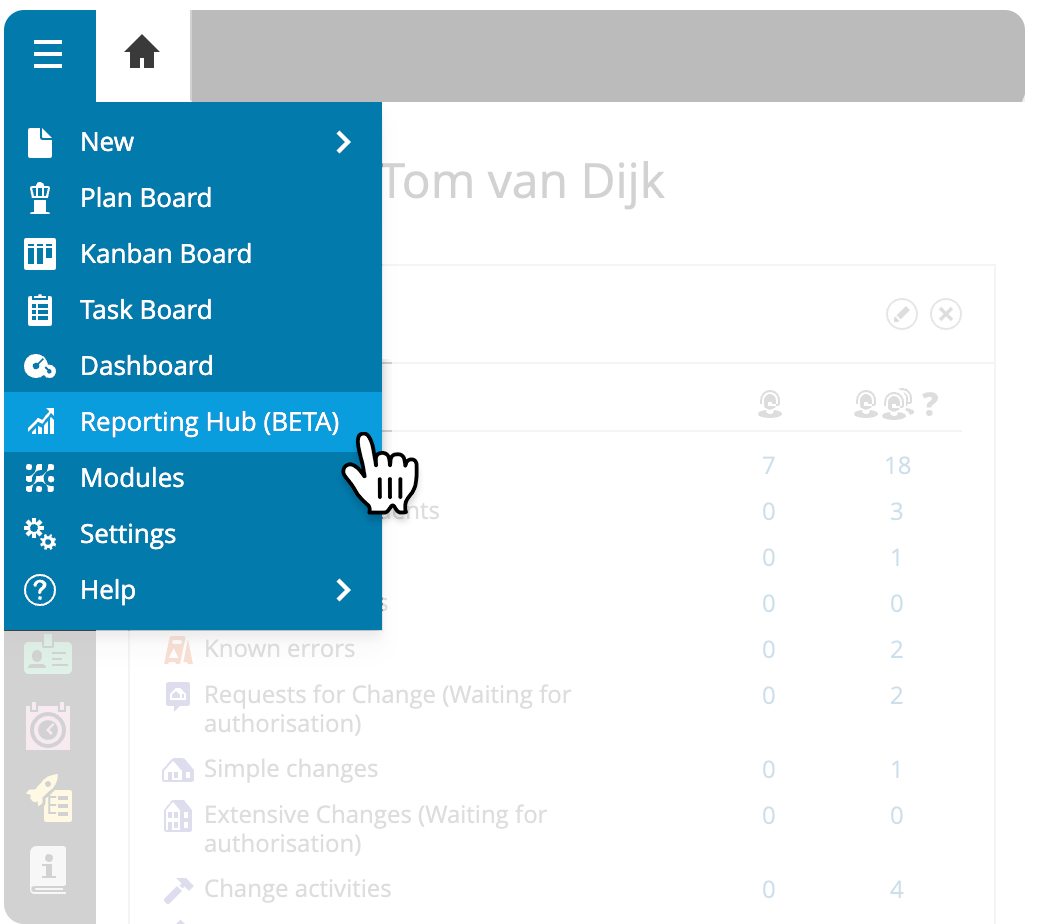
Go to the new Reporting Hub via the TOPdesk menu. This brings you to the overview of all reports and dashboards currently available via the hub. At the moment, you’ll find the two duration reports, and the brand-new Incident dashboard and Knowledge Management dashboard in this overview. In the future, more reports will be added to the hub.
New best practice dashboards
Besides combining the existing reporting functionalities, the hub offers new dashboards with new out-of-the-box reports. We built these standardized reports based on best practices. Although they work right out of the box, you can further customize them to fit them to your needs. For example, you can adjust the filtering to gain clearer insights into specific categories.
With the new Incident dashboard, you get valuable insights into your incident processes. It currently consists of three tabs, all focusing on a specific topic:
- Incident composition, showing you the number of incidents that have come in, in various groupings. With groupings such as ‘per priority’, ‘per operator group’, and ‘per category’, you have the perfect starting point for finding improvements.
- On this tab, you can find more details by right-clicking on a group in the pie chart. Choose the Drill to detail by option to open an overview with all incidents within that group.
- Another option is to add a cross-filter. This feature will add an extra filter to the other charts, based on the group on which you clicked. The same happens when you simply click on a group in the pie chart.
- Workload shows the number of open, registered, and resolved incidents in a bar/line chart per month. Below that, you see the same data in a table view.
- The Compliance tab gives more insight into whether the resolved incidents had their target date achieved or breached (per month). Again, you can find the same details in a table view below.
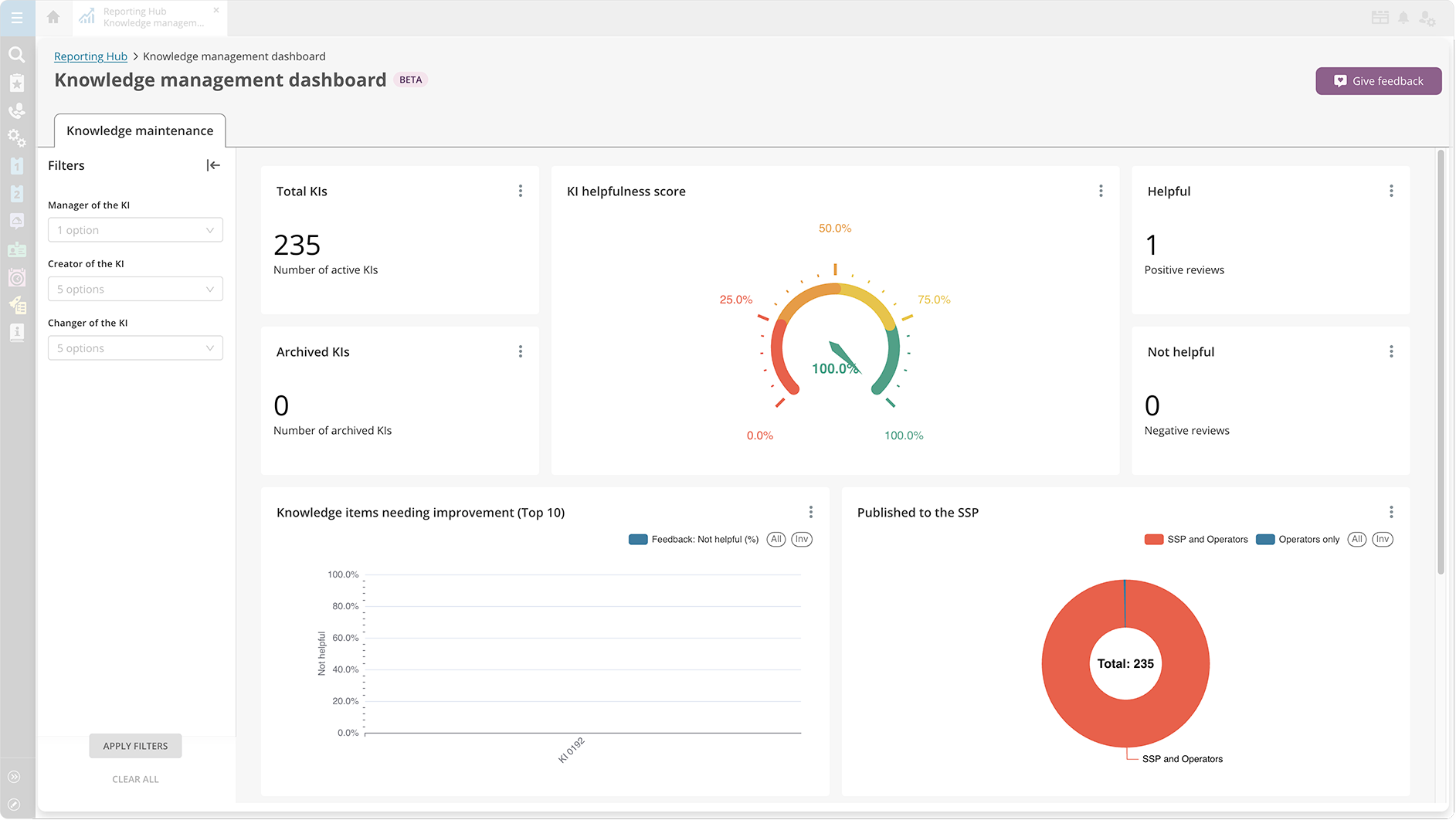
Next to the Incident dashboard, you’ll find the Knowledge Management dashboard. This dashboard helps you to further strengthen your knowledge base, making it more valuable for both operators and end-users to use what’s in there. It gives you insights into the quality of the knowledge, how well it is maintained, and how effective your knowledge base is in helping your end users.
It currently features one Knowledge maintenance tab. In essence, the dashboard is a summary of your whole knowledge base: the number of active knowledge items, the total helpfulness score, how many items need to be improved based on their feedback, and more.
Each tab also contains its own filters panel, so you can further customize your dashboard.
More best practice dashboards are currently being developed.
The future of the Reporting Hub
The Reporting Hub is currently still a beta version. We’ll gradually add more features, such as dashboards for other modules.
Is there a specific report or feature you’d like to see on the Reporting Hub? Let us know how we can further improve it via the Give feedback button on the start page of the hub or on the new dashboard.
Asset Management: improved asset overview accessibility
In the Asset overview, we moved the following buttons to directly above the table:
- Create
- Bulk edit
- Export
- Archive*
- Unarchive*
- Delete*
- Import*
* has been added to the context menu
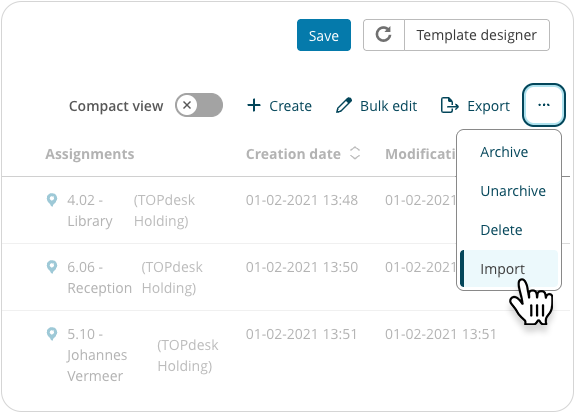
These buttons are now more directly visible and in a more logical place. It improves the overall accessibility of the overview.
This change leaves the Save (to save a custom overview), refresh and Template designer buttons on their old location.
Overviews embedded in other cards
For overviews that are part of other cards, such as the Assets tab on a Person card, the location of the following buttons changed in a similar way:
- Link
- Unlink
- Export*
* has been added to the context menu
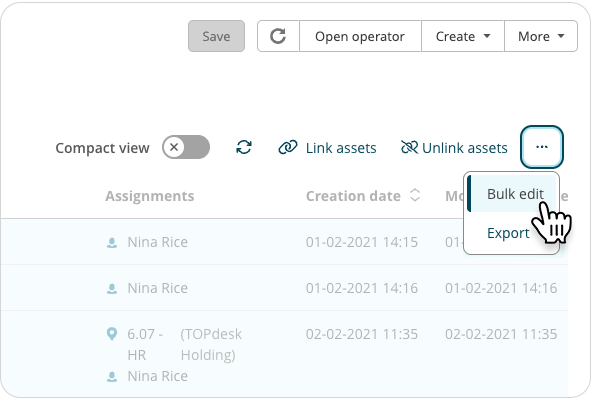
You now also have the option to bulk edit the assets that are in these overviews with the new Bulk edit button, found in the context menu. So, if one colleague's assets need to be handed over to someone else, you can do so directly from that colleague’s Person card.
Privacy: Share your privacy policy without login
In recent years, various extra privacy regulations have been put into effect. The privacy policy of your organization is an important way of communicating to users about how you comply with such regulations. To make sure your users can familiarize themselves with this policy before they start using TOPdesk, you can now add a link to your privacy policy on the login pages.
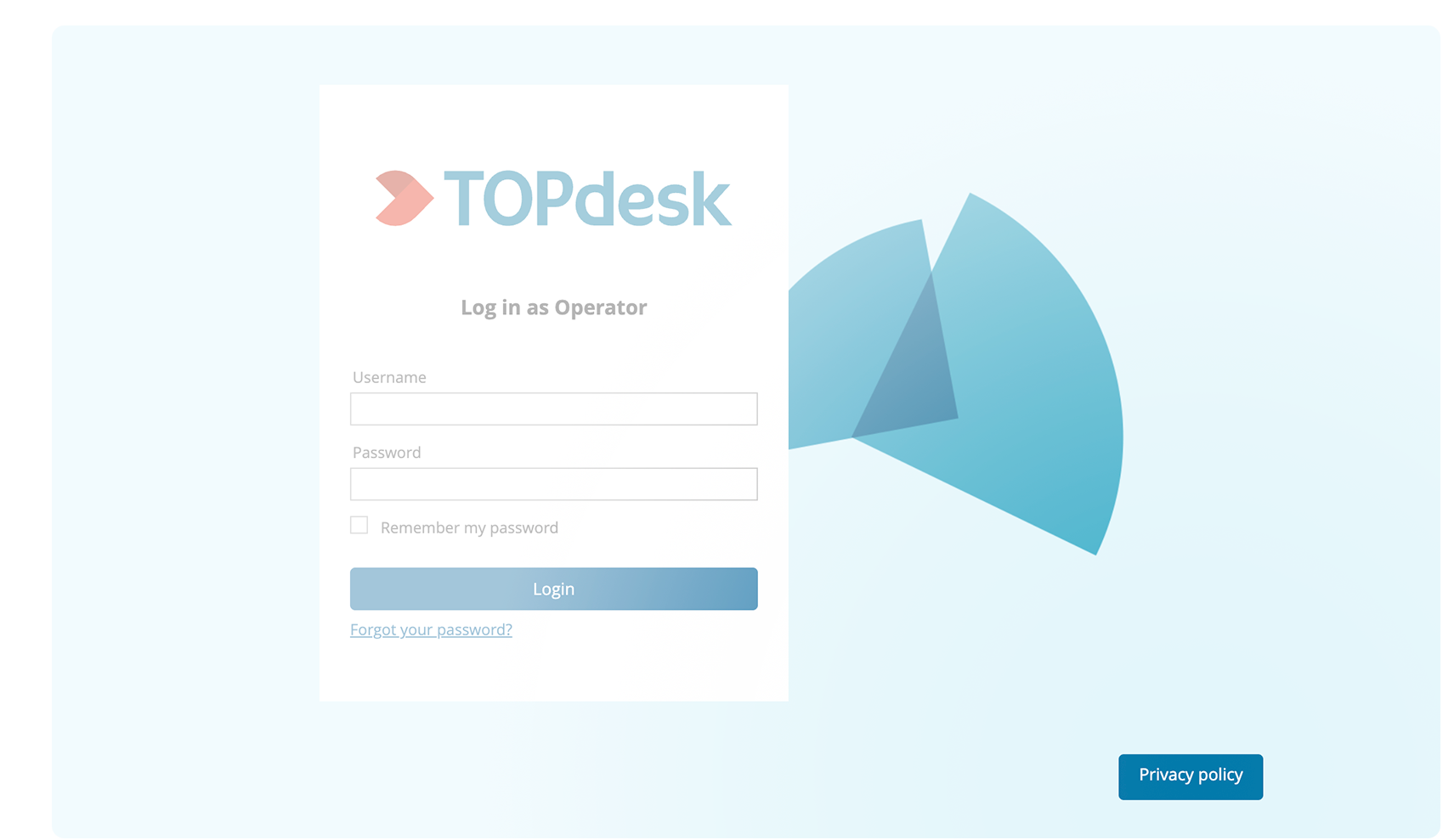
Add your privacy policy via Functional settings > Look & Feel > Login pages. In the Privacy policy block, simply enable the settings that you want to show the link on the login page and fill in the URL. The button will then appear in the bottom-right corner of all login pages.
New SSP: a unified request experience
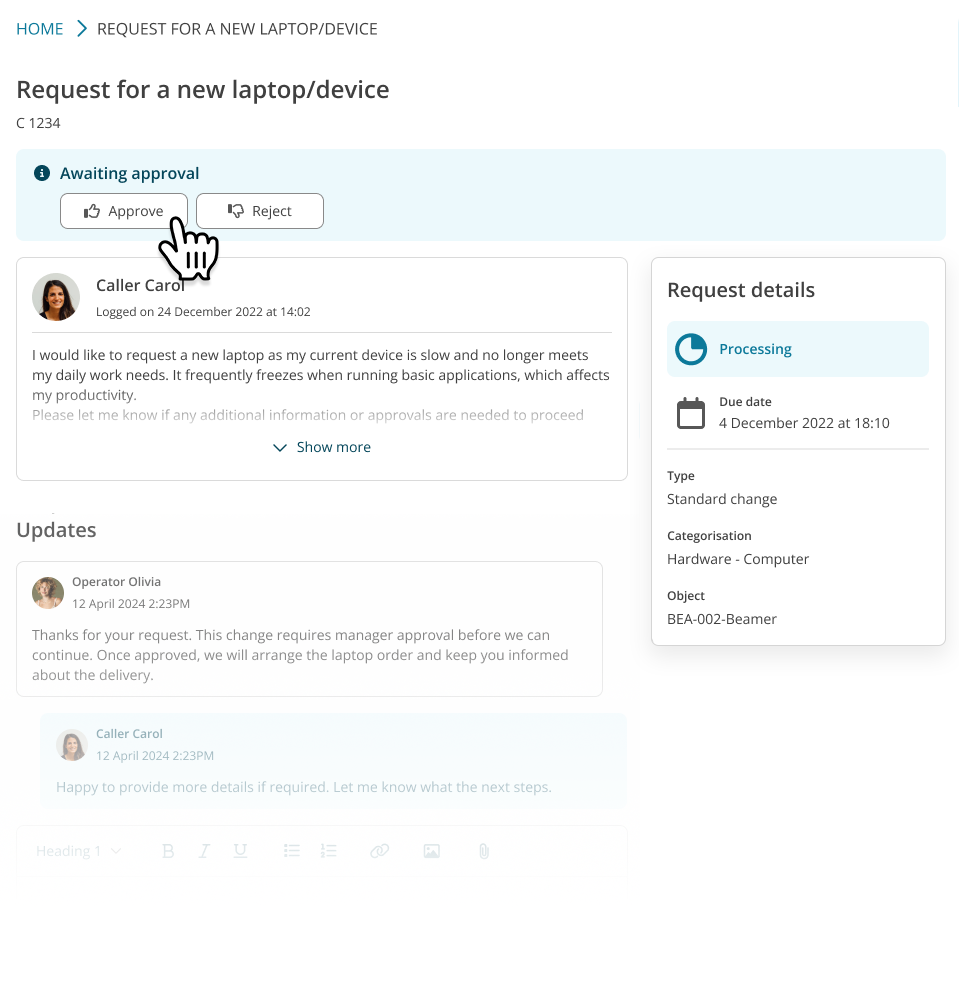
For enabling your team to better support their end users, we’re working on improving the user experience on the Self-Service Portal. This doesn’t only include modernizing the look and feel, but also implementing conceptual changes to the portal.
We identified that, despite these being two different concepts for operators, end users prefer the incident and change processes to be as similar as possible. To address this, we gradually introduce a unified request experience in the Self-Service Portal. As a result, the incident and change process will start sharing a similar user experience. This is achieved via four key updates:
- Consistent layout: the Change card on the Self-Service Portal will be aligned with the look and feel of the Incident card.
- Simplified statuses: the Change card will only show the current status, instead of showing the previous statuses as well.
- Due dates: In every phase of the change, the planned end date of that phase is shown.
- Approval actions for managers: the buttons for managers to approve or reject a step in a change will be moved to a notification banner.
Updates to be released soon
Rollout of these changes will start at the beginning of March 2026. If you want to prepare yourself and your team for this update, see our Renewing the Self-Service Portal page section on the documentation portal. It contains more detailed information about all changes, plus a sneak peek of how it will look in TOPdesk.
Task Board: clean up your overview with the ‘on hold’ filter
In some situations, you can’t work on an incident with input from the caller or supplier. The ‘on hold’ functionality in TOPdesk allows you to pause the duration of these incidents. This is not only useful for avoiding any SLA breaches, but also for keeping a clear overview of all the tasks that currently need your attention.
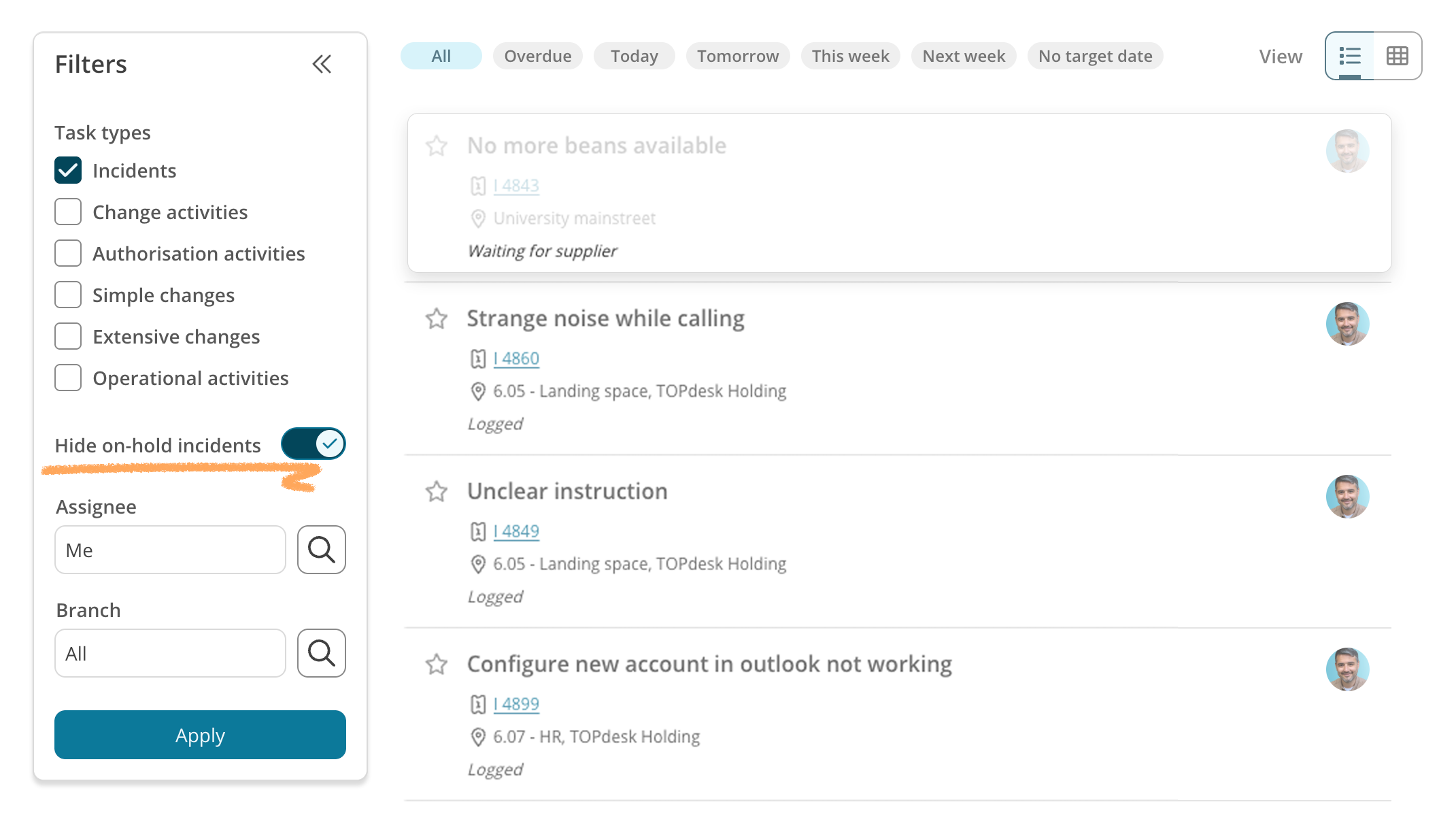
You can now filter your Task Board on these on-hold incidents, which helps you to get that clear overview of all tasks that actually need action.
And along with that, we fixed a bug that caused operators without an operator group to not be visible in the overview nor the filter options.
Other updates
- One TOPdesk User: Get a complete overview of how far your progress is with regards to linking operators to persons. Find the new Operators and persons link hub via the Supporting Files module page for a progress bar and links to pages with more information.
- Supporting Files import: When you use a local Active Directory as your import source, you can now also import the PersonalTitle field.
- Automated actions: Use the variable type ‘Attachments’ in variable assignment steps to automatically generate attachments based on the value of the step. You can then use the attachments in an HTTP or email step.
- Automated actions: In the new Email designs feature, we added the Insert value menu. It currently contains only the basic fields: all fields of the currently logged-in operator, and ‘This TOPdesk URL’.
Inspire others, share this blog