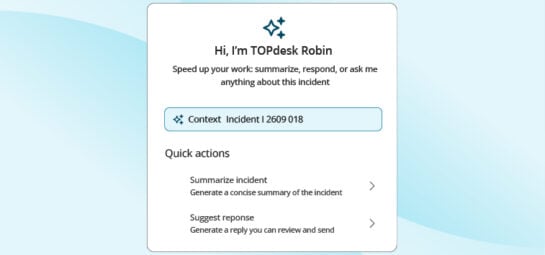
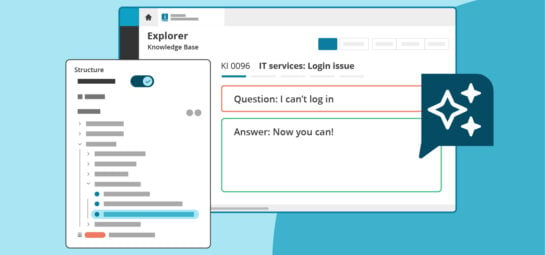
What’s New in TOPdesk: our May 2026 update

With brand new AI features, a new reporting dashboard, and a long-awaited Microsoft Teams integration, we have plenty of updates to discuss in this product update.
Incident Management: Turn Microsoft Teams chats into tickets
If your organization makes use of Microsoft Teams, many questions probably already get answered directly within Teams chats. But to keep track of the types of questions asked and how your team performs, you still want those questions registered in TOPdesk. As a result, your team regularly needs to navigate between two platforms to transfer useful information to TOPdesk. And when the pressure’s on, you risk context being lost, lower data quality, and colleagues getting frustrated.
We’re glad to share that we released a new Microsoft Teams integration for TOPdesk. Your operators simply click on a message and choose Send to TOPdesk, after which they can select which messages in a conversation should be put into a TOPdesk incident. No need to copy and paste all information from a chat to a ticket anymore, and no important information that gets lost in a chat.
Find the integration in the Apps section of Microsoft Teams. For more information about setting up the integration, see TOPdesk application for Microsoft Teams on our documentation portal.
New SSP: Enable the new end user experience
The Self-Service Portal is the go-to place for your employees’ requests. We want that experience to be intuitive; it should match other modern tools as much as possible. We’re happy to share that you can now enable the new Self-Service Portal for your end users.
What’s new in your portal
With the new SSP, we focused on the following aspects:
- A clean, modern design: The interface feels lighter and more intuitive, to help users who rarely access your portal. Also, the new portal offers a dark mode for more comfortable use in lower light.
- Improved navigation: Avoid endless searching through tiles. The SSP now follows a more structured flow. It’s easier to discover the services and knowledge items you have to offer.
- A user-centered experience: We listened to how end users actually experience a customer portal. We made important changes, such as unifying the experience for submitting Calls and Change requests. Also, various accessibility improvements were made to make the SSP useful for everyone.
- A foundation for new capabilities: The architecture of the SSP was renewed, so modern features can be created more easily. For example, this renewal was essential for new AI features such as AI Search.
End users ask, AI delivers
While looking for the right solution for their problem, your end users don’t want to think too much about their search keywords. They just want to put in exactly the question they have in mind and get to the answer as quickly as possible. Worst case, they still end up at your service desk.
With the new AI Search for the Self-Service Portal, struggling with the search query becomes a thing of the past. AI understands what your customer means, not just what they type. And that way, users find what they’re looking for, leading to a reduction in avoidable incidents of more than 15% and more time for complex issues.
A key update with AI Search is the summary of the search results. As you’re probably familiar with when using other AI tools, AI Search bundles the most relevant answers. This quick overview is the perfect start to finding your answer. However, if you need more information, you can still open the sources it used.
Unified request experience
The updates to the Change cards in the new SSP, as mentioned in the previous What’s New blog, have now been released. You can enable the new unified request experience via Settings > Module Settings > Self-Service Portal > Change Management > Unified Request UI (SSP).
Need a quick refresh on what’s actually changing? See The unified request experience on our documentation portal.
The key to the new portal is in your hands
We couldn’t wait to share the new version of the SSP with you. However, that also means that we couldn’t update every page of the SSP yet. These pages will still be redirected to the classic SSP. So, don’t worry about any page suddenly not being available, but your end user might be teleported back to the past.
For this reason, and to make sure you can prepare your end users, we let you decide when you enable the new Self-Service Portal. Simply go to Settings > Module Settings > Self-Service Portal > General and make the switch under Switch to the new Self-Service Portal.
Learn about all that’s changed and changing
Your Self-Service Portal is the place for your end users to learn more about the services you offer. As this includes many different types of pages and possibilities, it might be difficult to have an overview of how the new SSP will impact your organization. If you recognize this, you might find our Update Guide (docs.topdesk.com) helpful. This guide offers a complete overview of all that’s already included in the new SSP, what’s coming up, and what’s still missing.
Knowledge Management: Write like a pro, every single time
Let’s be honest: not everybody was born as a great writer. You know exactly how you solved a new problem, but you struggle to explain it to whoever will run into this next.
We released a new AI feature that keeps your team from overthinking every sentence and still deliver clear and professional knowledge items: AI Writing Assistant (TOPdesk Excellent).
Using the AI Writing Assistant
Whether you only enter some short notes, a messy bulleted list, or a full draft, the Writing Assistant takes it and turns it into something that your colleagues and end users will actually understand. It will focus on grammar, spelling, clarity and tone of voice.
In the description, content and comments for Operators field of a knowledge item, you’ll find the new Writing Assistant feature. When there’s sufficient content in the field, the Writing Assistant will generate a rephrased version of your original text.
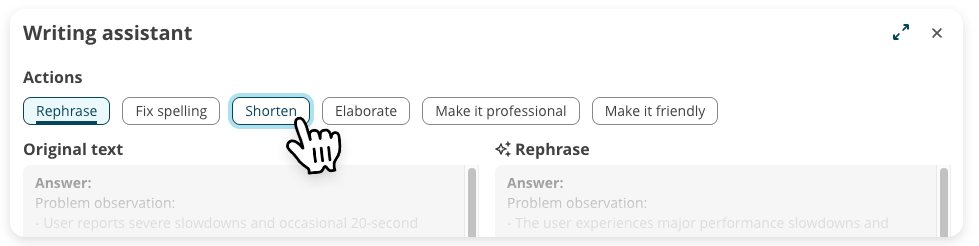
Do you prefer a different writing style for your Knowledge Item? You might only have some rough notes that need some love. Or maybe you dumped all your knowledge and need someone to edit it further. Next to the standard Rephrase option, the Writing Assistant offers five standard actions to turn your input into something your end user will actually read.
Then, when AI generated an improved version of your input, you can either replace the text directly or first copy the text for further editing. And don’t forget to give a thumbs up or down for the rewritten version, as this helps to generate better output in the future.
More information
For more information on using the Writing Assistant, see our AI Writing Assistant page on the documentation portal.
AI features: end of early access
Our first three AI features are no longer in early access and are now standard TOPdesk features. The availability of our AI features is now as follows:
- AI Incident Categorization: Engaged, Excellent
- AI Knowledge Item Generation: Engaged, Excellent
- AI Search: Engaged, Excellent
- AI Incident Summarization: Excellent
- AI Writing Assistant: Excellent
Asset Management: Keep your assets up to date with the Lansweeper integration
To solve incoming requests and avoid future problems, having an up-to-date list of assets is a prerequisite. Software tools like Lansweeper offer you a real-time view of your technology landscape.
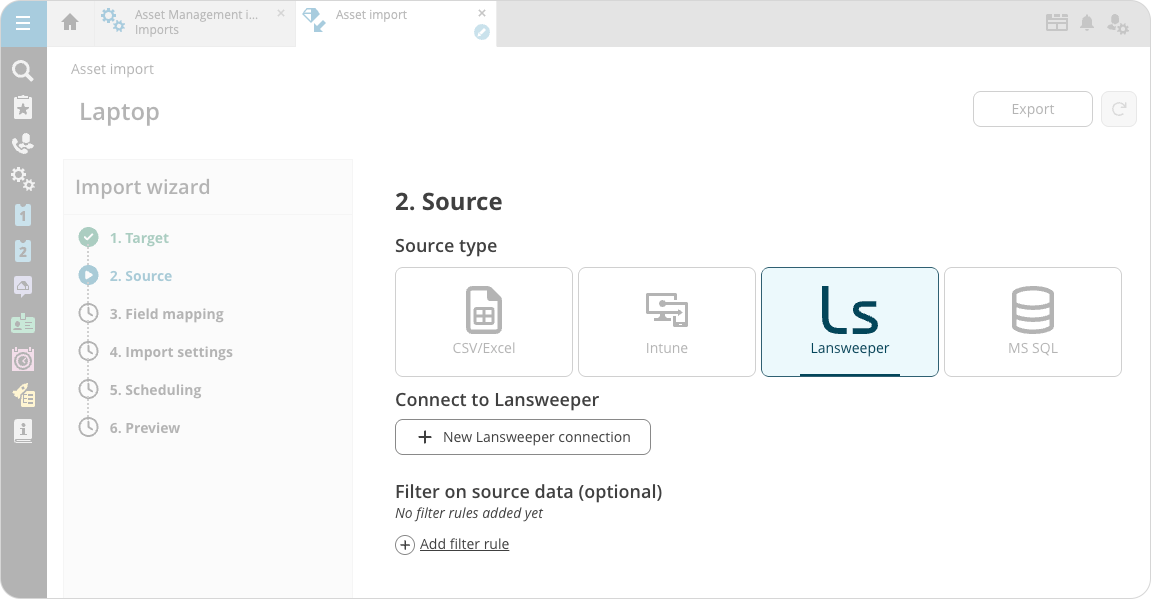
You can now connect your TOPdesk environment to Lansweeper via a native integration. Lansweeper is now available as a source type in the Asset Management import. Simply pick Lansweeper as source, fill in the connection details in both TOPdesk and Lansweeper, determine which asset types you want to import, and you’re ready to go.
Improved reliability over older connectors
Previous (external) integrations were not part of our core product and therefore harder to maintain. This new integration is fully supported within TOPdesk and therefore ensures greater consistency and long-term reliability.
If you still use the older external integration, we advise you to freely switch to the new solution.
For full details on how to connect your TOPdesk environment to Lansweeper, see ‘Connecting to Lansweeper as Asset Management import source’ on our documentation portal.
Task Board: Manage your bookmarks on the Task Board
When the new Task Board version became the default version, we already took a step in making it the first place to go for your daily tasks. By fully integrating the Bookmarks functionality with the new Task Board, we further enhance its value.
Replacing the old Bookmarks overview
The Bookmarks feature, quickly accessible via the Quick Launch bar of the Operator section, now opens your Task Board with the ‘bookmarked tasks only’ filter turned on. This makes sure you get a more consistent and modern look, and you can enjoy the new features that come along with the new Task Board while checking out your bookmarked tasks.
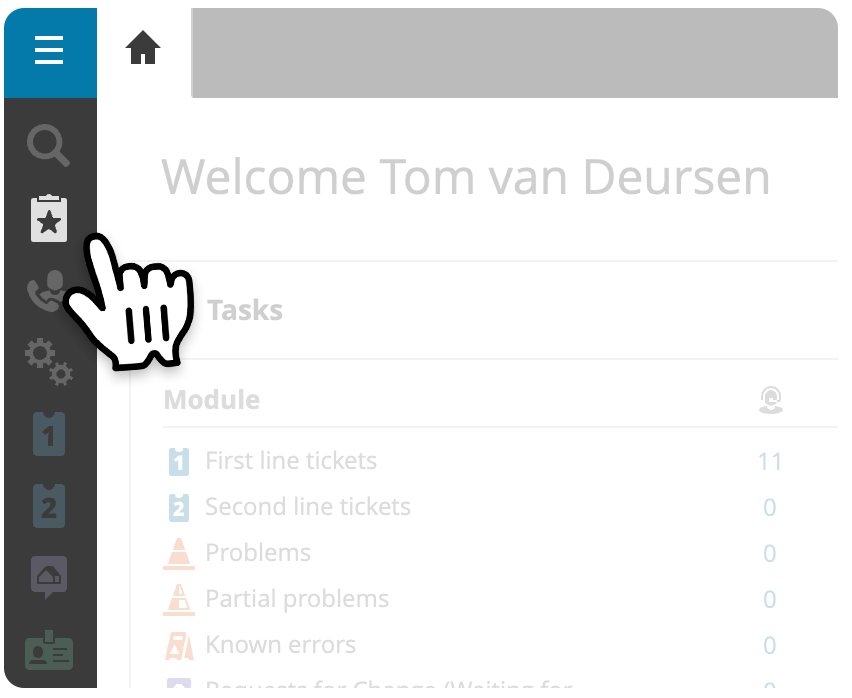
Two new Task Board filters
The new Task Board now includes filters for only showing open tasks and for only showing bookmarked tasks. For the ‘Show only open tasks’ filter, the following applies:
- When the filter is disabled, you won’t see any closed and completed calls, and Change Management cards that are resolved, approved, skipped, cancelled, or rejected.
- The filter is turned on by default, as the tasks mentioned above were visible before this filter was introduced.
Reporting: Measure your customer satisfaction
Customer satisfaction is one of the—if not the—most important indicators of successful IT Service Management. With that in mind, we created the third dashboard for the new Reporting Hub: the Customer satisfaction dashboard.
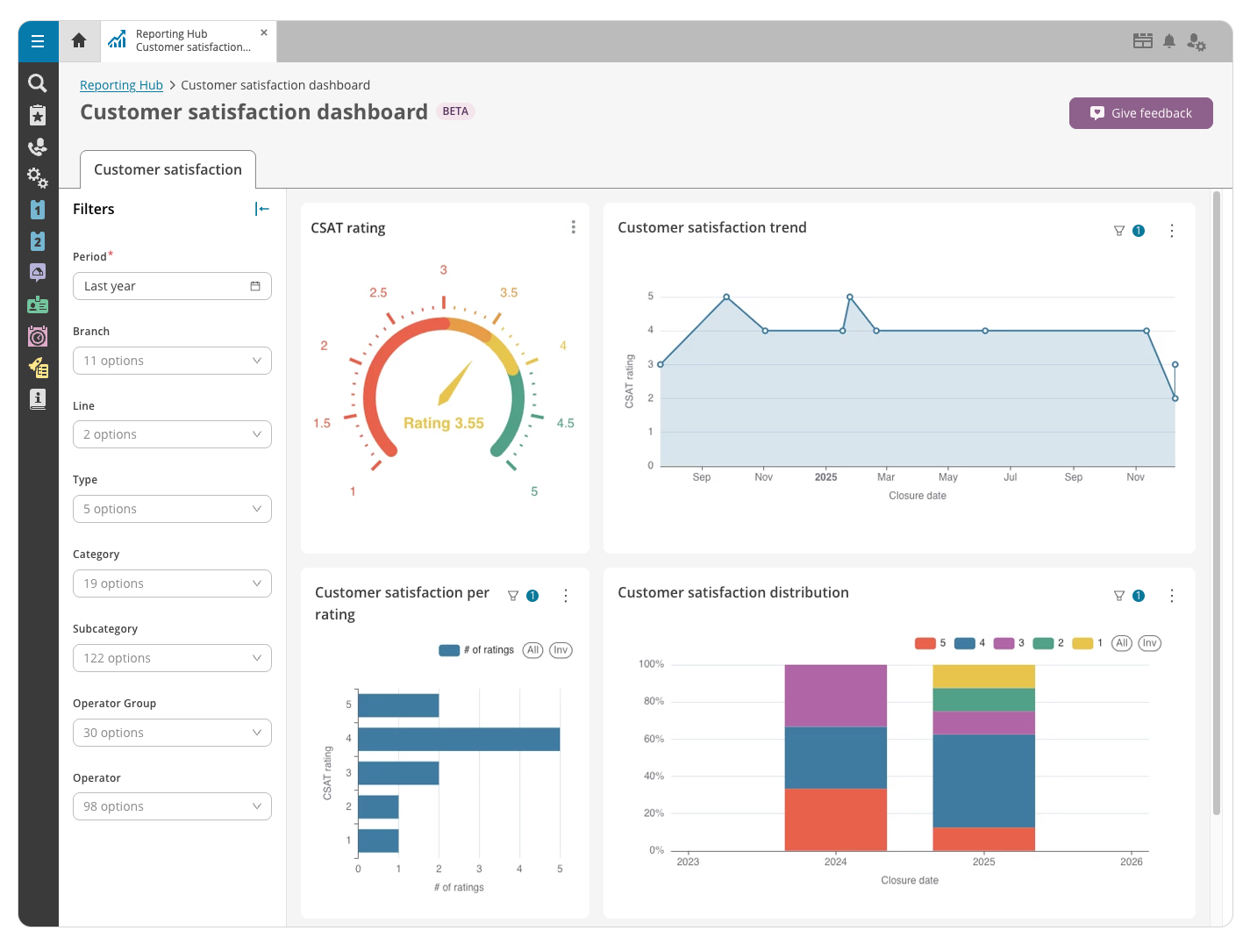
The dashboard uses the feedback data gathered via Incidents, where one to five stars can be given after the request was resolved, to give you useful insights on how to improve your services. This data is used for several standardized reports:
- CSAT rating gives you the most direct feedback on where you currently stand.
- Is it time for changes, or are your efforts paying off? In Customer satisfaction trend, you see how the satisfaction of your customers is developing.
- Does your team get a steady 3-star rating, or is it an average of perfect 5s and disappointing 1s? In Customer satisfaction per rating, you see how often a certain rating is given.
- Customer satisfaction distribution gives more insight into how satisfied your customers were in a certain period.
You can make all reports more useful for your question with the Filter panel on the side. For example, filter by certain categories to see where you can improve your customer satisfaction. This way, you can make decisions based on real customer data, not just on gut feeling.
In addition, you can drill down to details by right-clicking any part of a chart to see which tickets were used in that section of the report.
Learn more about how your services are perceived
To start collecting and visualizing CSAT data, make sure customer feedback is enabled in the Self-Service Portal. Go to Settings > Module Settings > Self-Service Portal > Incident Management and tick the Users can rate how an incident was handled checkbox. Over time, you will gather valuable input on how the work of your service desk is perceived.
Knowledge Management: Migrate to a modernized Explorer experience soon
With a solid Knowledge Management process, you enable your end users to find their answers without contacting your team, giving them the time to research new issues and potential improvements. And with the new AI Search, we can’t stress the value of Knowledge Management enough.
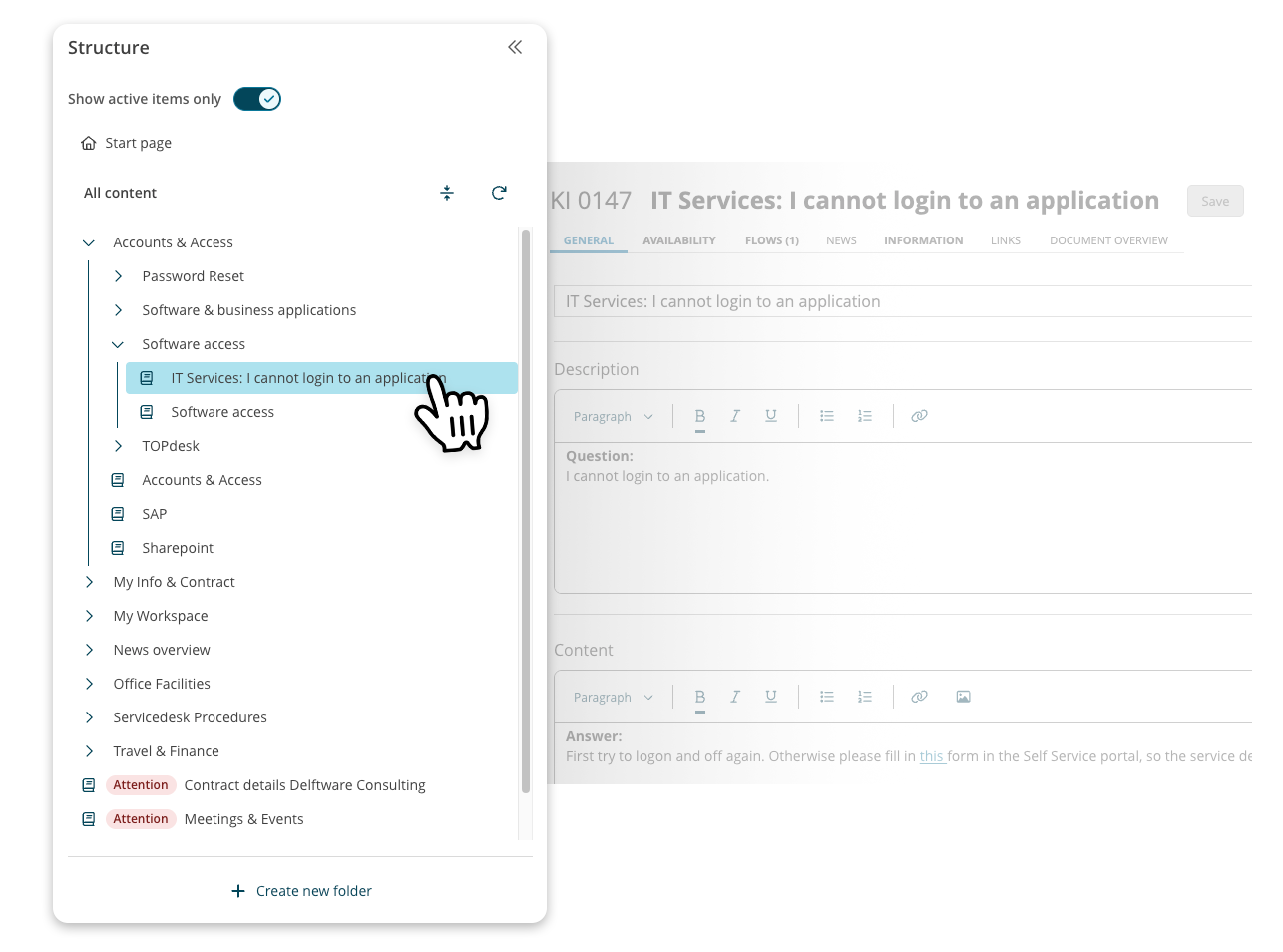
We’re introducing the new Knowledge Management Explorer: your tool for creating, editing and managing knowledge in your organization. It has the features you already know, with a fully modernized look. But there are also a few important changes.
We roll out this new version in the upcoming weeks.
Introducing Folders
Possibly the most important change is the use of folders. In the current Knowledge Base, you give structure by creating a main item (about a certain topic) and linking other items to it. This way, a larger tree structure develops.
In the new Knowledge Base Explorer, we introduce Folders. Folders will take the role of those main items and will be on the top level of your Knowledge Base. For example, if your Knowledge Base is split into IT and FM items, you will create a folder for IT and a folder for FM items. This way, you no longer end up with empty Knowledge Items solely for the purpose of grouping information.
You can set the visibility of underlying knowledge items on the folder level. When a folder is set to invisible for the Self-Service Portal, all linked Knowledge Items will be set to invisible too.
This structural change of the Knowledge Base also helps to develop new features, such as an improved restrictions system.
Prepare your Knowledge Base with the migration guide
The new folder system is a big and important change. When you switch to the new Knowledge Base Explorer, we need to migrate your Knowledge Base to this new structure.
Get full control over the migration by using the new migration guide.
Via the migration banner on the Knowledge Management module page, you will prepare your migration in three steps:
- Learn what will change with the migration.
- Check for items that currently block a migration. This concerns issues like:
- Unsupported language
- Linked files with missing sources
- Schedule and confirm your migration.
It’s important to note that the Knowledge Base Explorer is not available during migration. Knowledge Items will be in read-only mode until the migration is finished.
Supporting Files: Better manage your Person and Operator cards
We’ve made a few changes to Operator and Person cards, making it simpler to manage your users.
Convert Operators to API accounts
Last year, we introduced the new API Account card. This card type functions as the replacement for Operator cards that were set up solely for automation and integrations. This way, you don’t need to link your API users to a Person card anymore. Besides, API accounts don’t require an operator licence and therefore are completely free. But many organizations already created one or more Operator cards just for automated processes.
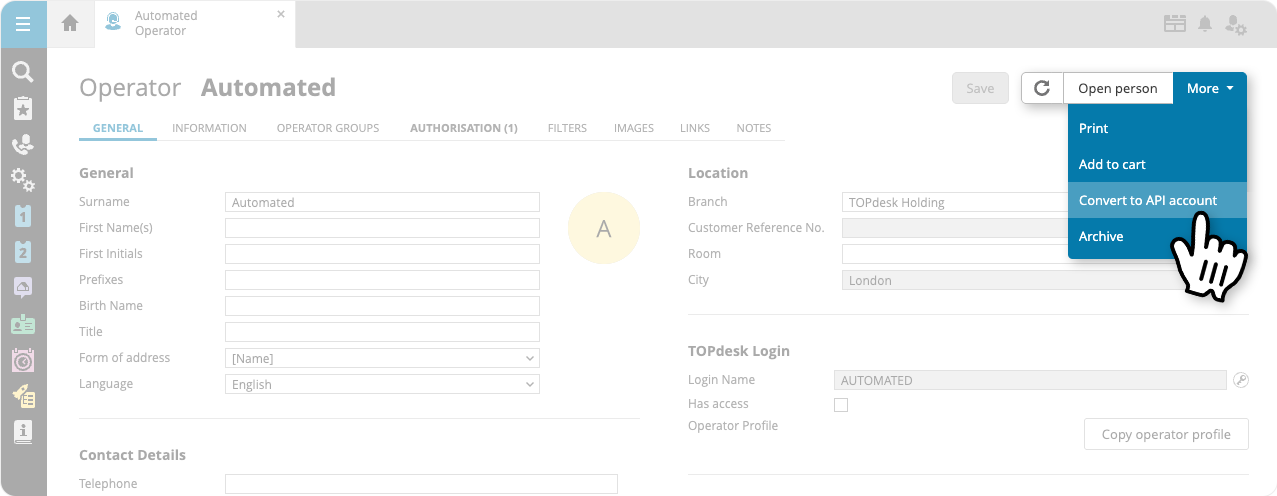
To minimize the extra work needed to convert these Operator cards to API Account cards, we added a conversion feature. On your Operator cards, under More, you’ll find Convert to API account. This will take along all useful information, like existing application tokens and permissions, to your new API Account card.
New Roles section & SSP access checkbox on Person cards
Some people related to your organization need to be registered in TOPdesk for administrative or reference purposes only. For this reason, we added the new Caller checkbox in the equally new section Roles. By default, this checkbox is enabled. For Person cards that are generated automatically for unlinked operators, the checkbox will be left unticked. When unticked, this Person card will now longer appear in these lists:
- The caller block on all types of Incident cards
- The caller block on the Change and Change Activity card
- The host on the Visitor card
- The caller name on forms in the Self-Service Portal
- The caller name on the Caller card (TOPdesk menu > New > Caller Card)
The new Roles section now also contains the Is manager checkbox, determining whether the related Person can be selected as manager for other persons. You will now find the drop-down list to select someone’s manager under Details.
Another recent addition is the Has access to Self-Service Portal checkbox. If a person is added to TOPdesk, but shouldn’t be able to access the SSP to submit requests or search knowledge items, simply untick this checkbox. This update further aligns Person cards with Operator cards, for which a similar checkbox was already available.
Inspire others, share this blog